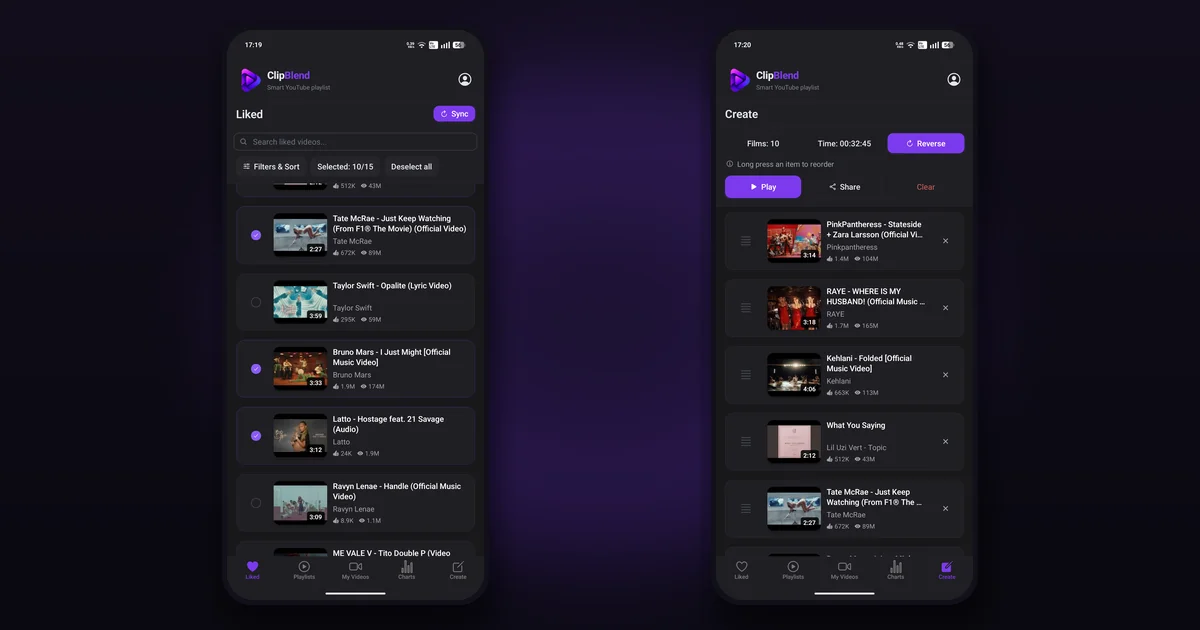
To create a playlist on YouTube, open a video, select Save, choose New playlist, give your playlist a name, choose its visibility, and confirm. YouTube creates the playlist with that video already added. You can add more videos whenever you want.
How to create a YouTube playlist on a computer
Follow these steps to create a new playlist on YouTube using a web browser:
- Open YouTube and sign in to your account.
- Find and open a video you want to add to your playlist.
- Click Save below the video. If you don't see it, click More (the three-dot menu), then select Save.
- Select New playlist.
- Enter a name for your playlist.
- Choose a visibility setting: Public, Unlisted, or Private.
- Click Create.
Your new playlist is ready, and the video you selected is already in it.
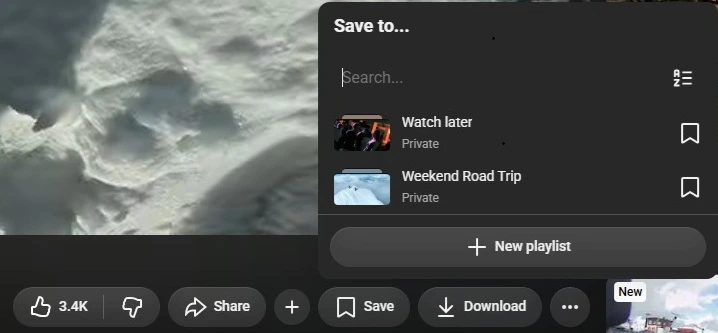
To add more videos, open another video, click Save (or use More, then Save), and choose the playlist you created.
Tip: Choose a descriptive name, such as "Weekend Road Trip," "Favorite Live Performances," or "Spanish Listening Practice." Specific names make playlists easier to find later.
How to save a Short to a playlist on a computer
You can create a playlist from a Short using the same Save menu as for a regular video:
- Open the Short you want to add.
- Click More (the three-dot menu), then select Save. In some versions, the option may be called Save to playlist.
- Select New playlist.
- Enter a name, choose a privacy setting, and click Create.
To add the Short to a playlist that already exists, choose that playlist from the Save menu.
How to create a YouTube playlist on Android or iPhone
You can also create a playlist directly in the YouTube mobile app. The steps are similar on Android and iPhone.
- Open the YouTube app and sign in.
- Find a video you want to save. (For Shorts, see the steps below.)
- Tap More (the three-dot icon) below the video, then select Save.
- The video is saved to your last-used playlist or Watch Later, and a confirmation message appears at the bottom of the screen. Tap Change on that message.
- Select New playlist.
- Enter a name and choose your privacy setting.
- Tap Create.
The selected video is added to your new playlist automatically.
To add more videos later, open each video, tap More, then Save, and select the playlist you want to use.
How to save a Short to a playlist on Android or iPhone
To create a playlist from a Short in the YouTube mobile app:
- Open the Short you want to add.
- Tap More (the three-dot icon), then select Save to playlist.
- Select New playlist, or choose an existing playlist.
- Enter a name, choose your privacy setting, and tap Done.
In some app versions, tapping the Save icon on a Short may save it immediately. If that happens, tap Save again to open the playlist selection menu, where you can choose an existing playlist or create a new one. This may vary by app version.
The available controls and menu layout may vary slightly by app version. For the current steps, see YouTube's official playlist help page.
How to add videos to a YouTube playlist later
You don't have to add every video when you first create a playlist. You can build it gradually as you discover new content.
To add another video:
- Open the video on YouTube.
- Select Save. If you don't see it, use the More (three-dot) menu.
- Check the box next to the playlist you want to update.
To remove a video, open the playlist, open the More menu next to the video, and choose the option to remove it. Depending on your device or app version, this may be labelled Remove from, followed by the playlist name, or simply Remove. See YouTube's official playlist help page for guidance.
This is useful for ongoing collections, such as workout routines, cooking tutorials, music for studying, or videos you want to watch during a trip.
How to make a YouTube playlist private, unlisted, or public
When you create a playlist, YouTube lets you choose who can access it. You can also change its visibility later.
Here's how the three settings differ:
- Private: Only you can view the playlist.
- Unlisted: Anyone with the link can view and share the playlist. It generally won't appear in YouTube search results or your channel's public playlist listings.
- Public: Anyone can view the playlist, and it can appear in search results and recommendations.
Choose Private for personal collections you don't want to share. Use Unlisted when you want to send a playlist to specific people without making it publicly discoverable. Choose Public if you want others to find your collection.
To change the visibility of an existing playlist, open its settings or editing options and select the visibility setting you prefer. The available controls may differ between desktop and mobile.
How to share a YouTube playlist
- Open the playlist.
- Select Share.
- Copy the link or choose an available sharing option.
You can then send the link to a friend, add it to a message, or share it on social media.
Remember that people must have permission to view the playlist. A Private playlist cannot be viewed by other people just because you send them a link. If you want to share it, change its visibility to Unlisted or Public.
How to edit or delete a YouTube playlist
Open a playlist from your library to rename it, change its description or visibility, reorder videos, or remove videos. You can also delete a playlist you no longer need. Deleting a playlist does not delete the individual videos from YouTube. The exact controls differ by device, so see YouTube's guide to editing and deleting playlists for the current steps.
What about YouTube Music playlists?
YouTube and YouTube Music are related services, but their interfaces and playlist controls are not identical.
This guide covers playlists in the regular YouTube app and website. If you mainly listen to music through YouTube Music, see the YouTube Music Help Center for instructions specific to that app.
Tips for keeping your YouTube playlists organized
Creating playlists is easy. Keeping them useful over time takes a little planning.
- Give each playlist a clear purpose. Separate workout videos from cooking tutorials or travel inspiration.
- Use specific names. "Easy Weeknight Recipes" is more useful than "Videos."
- Avoid unnecessary duplicates. Before creating another playlist, check whether an existing one already serves the same purpose.
- Review your collections occasionally. Remove videos you no longer need and update playlists as your interests change.
- Don't make every collection permanent. Sometimes you only want to group a few videos for one activity or occasion.
For example, you might want to collect a few music videos for a party, gather travel recommendations before a holiday, or select several tutorials for a single project. Not every collection needs to become a permanent playlist in your YouTube account. If you want to explore this idea further, read our guide: What Is a Temporary YouTube Playlist? How to Create One.
When a regular playlist isn't the most convenient option
YouTube playlists are useful for collections you want to keep and revisit. However, sometimes you simply want to select videos you already like, arrange them for a particular occasion, and start watching without creating another permanent collection.
ClipBlend is an Android app that helps you browse your liked YouTube videos and playlists, search and filter your library, and select videos for a temporary playlist that plays in the YouTube app.
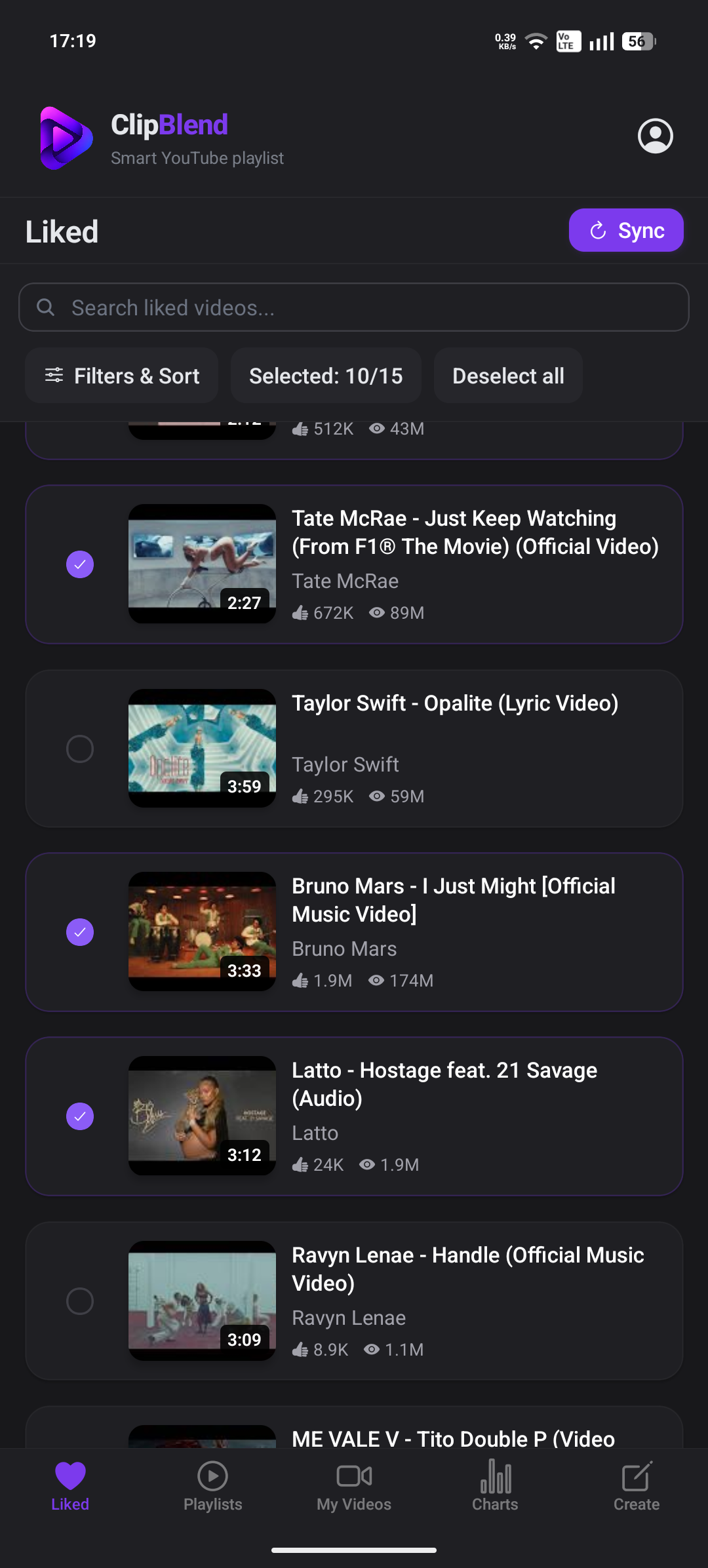
ClipBlend does not create, edit, or delete playlists in your YouTube account. Your existing YouTube playlists remain unchanged, and ClipBlend is currently available for Android only.
Learn more at clipblend.com.
Frequently asked questions
Can I create a YouTube playlist for free?
Yes. You can create and manage YouTube playlists with a regular YouTube account. You don't need a paid subscription just to create a playlist.
Can I add more videos to a playlist after creating it?
Yes. Open a video, select Save, and choose the playlist you want to update. You can repeat this whenever you find another video you want to include.
Can I make a YouTube playlist private?
Yes. Set its visibility to Private when creating it or change the setting later. Only you can view a Private playlist.
Can I create a playlist from my liked videos?
You can add liked videos to a regular playlist one by one using the Save option. If you want to browse and select videos from a larger collection of liked videos, ClipBlend offers an alternative workflow on Android.
What is the difference between a regular and a temporary YouTube playlist?
A regular playlist is a collection you keep and revisit. A temporary playlist is a group of videos for one activity or viewing session. "Temporary playlist" is a descriptive term, not an official YouTube playlist type. See our guide to temporary YouTube playlists.
Can I use ClipBlend on an iPhone or computer?
No. ClipBlend is currently available for Android only.
Final thoughts
Creating a playlist on YouTube takes only a few steps, whether you're using a computer, Android phone, or iPhone. Once your playlist is ready, you can add videos, change its visibility, share it, and update the collection as your interests change.
For collections you want to keep, regular YouTube playlists are a practical choice. For a one-time viewing session, selecting a smaller group of videos may be all you need. If you often want to play a selection of videos you've already liked without changing your existing playlists, take a look at ClipBlend.
You may also like: